
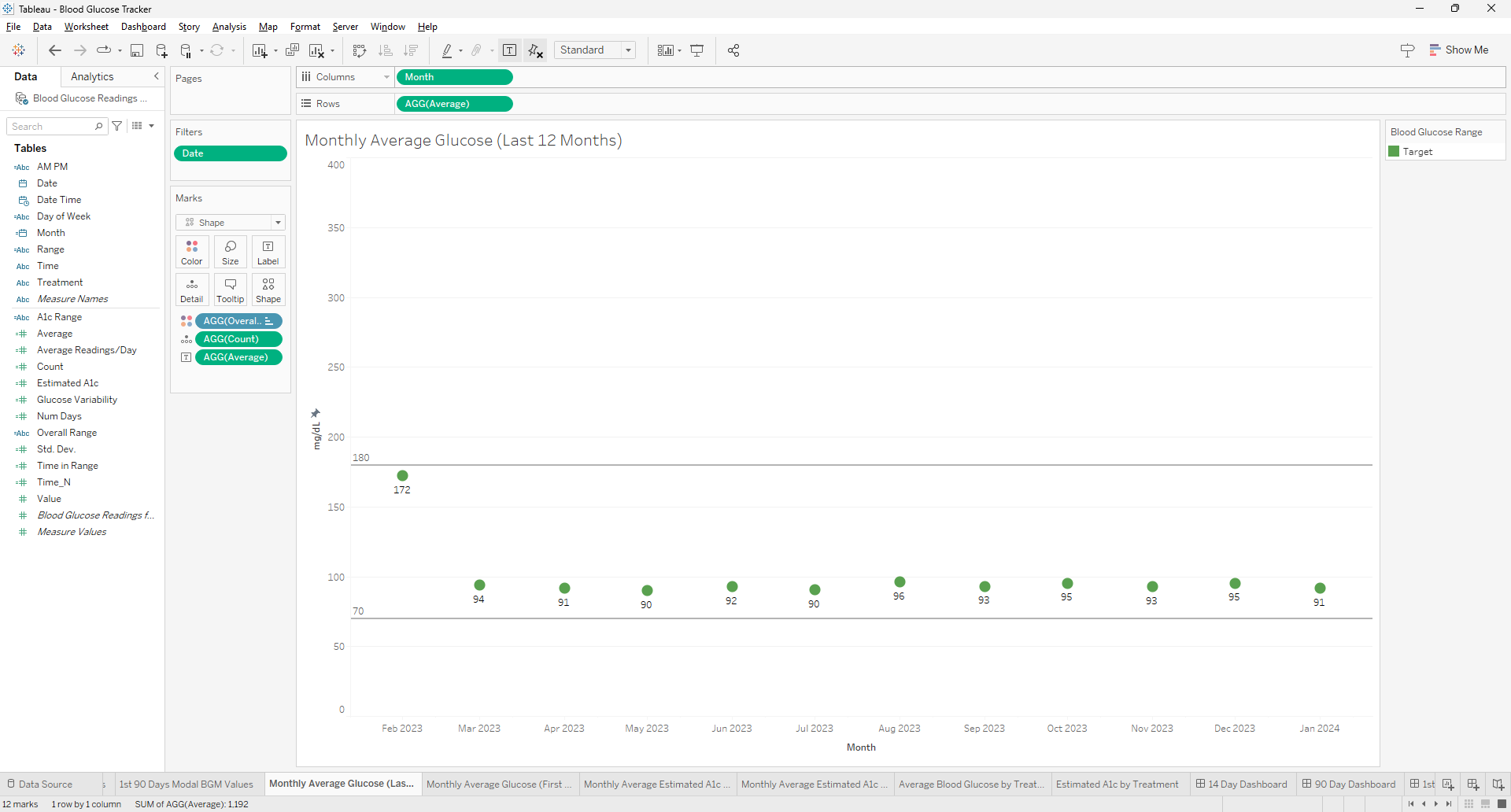
Creating a visualization for the most recent 12 months in Tableau can be a common requirement for time series analysis. To achieve this, you can use the `DATETRUNC` function to truncate your date data to the first day of each month, ensuring that your months will be in the correct order when aggregated. Here's how to use the `DATE(DATETRUNC('month',[Date]))` function effectively in Tableau for this purpose.
Understanding the DATETRUNC Function
The `DATETRUNC` function in Tableau truncates a given date to the specified date part, such as the year, quarter, or month. When you use `DATETRUNC('month', [Date])`, it will return the first day of the month for each date in your dataset. This is useful for creating consistent monthly data points for visualization purposes.
Steps
Benefits of Using DATETRUNC
Using the `DATE(DATETRUNC('month',[Date]))` function in Tableau is a powerful way to prepare your data for visualizations that require monthly aggregation. It ensures that your months are in order and that your visualization reflects the most recent 12-month period. This approach is part of Tableau's robust time series analysis capabilities, which allow for insightful trend spotting and variance analysis over time.
Frequently Asked Questions
Can this method be applied to other time units (like weeks or days) and if so, how would the approach change?
The DATETRUNC function can indeed be applied to other time units such as weeks or days. The approach remains similar, but the unit of truncation in the function needs to change (e.g., 'week' or 'day') to reflect the desired aggregation level.
How can you use the calculated field created with DATETRUNC in Tableau to compare year-over-year data?
To compare year-over-year data using DATETRUNC, you can create separate calculated fields for the current and previous years by manipulating the date part of your DATETRUNC calculation. Then, use these fields in your visualization to compare performance across different years.
What are the best practices for ensuring that the date formatting in the calculated field matches the rest of the dashboard elements in Tableau?
Best practices for consistent date formatting include setting the default date format in the data source, using calculated fields to standardize date formats, and applying consistent formatting settings across dashboard elements directly within Tableau's format options.
Abstract
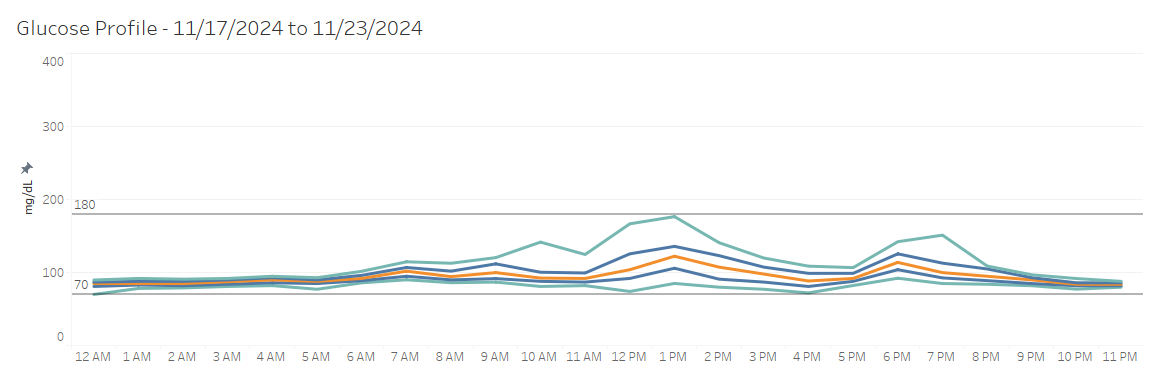
This post concludes the "Working with CGM Data" series by demonstrating how to create insightful visualizations in Tableau using continuous glucose monitor (CGM) data. It covers two visualization categories—CGM-style and data analysis-style—and highlights their unique features and applications. Advanced Tableau techniques, including calculated fields and dynamic parameters, ensure precise and actionable insights. This guide demonstrates how to translate raw CGM data into actionable visual reports, creating a framework for analyzing glucose management trends.
Key Points
Read more: Working with CGM Data: Part 4 – Visualizing the Data in Tableau
# Import packages

# For data manipulation
import numpy as np
import pandas as pd

# For working with datetime objects
from datetime import datetime

# For working with SQLite databases
import sqlite3
Abstract
Establishing a reliable and efficient process for managing continuous glucose monitor (CGM) data ensures the dataset remains accurate, consistent, and manageable. Using Python and SQLite, new data is cleaned, validated , and added to the database, and prepped for visualizations in Tableau.
Key Points
Read more: Working with CGM Data: Part 3 - Cleaning and Processing New Data with Python and SQLite
# Import packages

# For data manipulation
import pandas as pd

# For working with SQLite databases
import sqlite3
Abstract
Explore the use of Python, SQLite, and SQL Magic to manage growing datasets efficiently.
Key Points
Page 8 of 9